


Skip to content
Chat with a Pro to take your lawn from good to great!

Started from a spare room we’re a Texas lawn care company that puts people first, takes ownership, & listens well…all with a little bit of grit.

At Emerald Lawns, we create and maintain environments that are great places to live, work, and play. Find out more today!

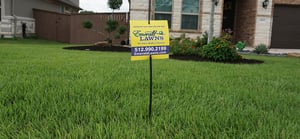
lawn and sign

What's New?!

View upcoming services, invoices, & payment history just like before…with some new bonus features.
Tracking URL Get a text when your tech is on the way with a link to view their location.  
Multiple Properties, One Login Manage the status and invoices for multiple properties in one account  
Open a Case Create or track open cases with our Customer Service Team on the "My Support" Page.  

Have Questions?

Find answers, complete with screenshots in the FAQs below.

Still unsure? Contact us!

New Portal FAQS

How do I login to my Customer Portal?

To access your Customer Portal, open the email from Emerald Lawns with the subject line: Welcome to Your New Emerald Lawns Customer Portal! Within the email, you’ll find a link to the Customer Portal and your username.

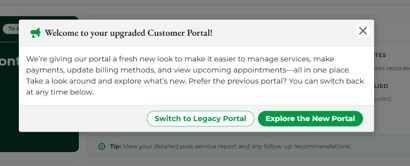
Click the Customer Portal button in the email or visit https://www.mylawnportal.com/s/login/?expid=EmeraldLawns and enter your username. After you log in, a welcome message lets you explore the New Portal or switch to the Legacy Portal.

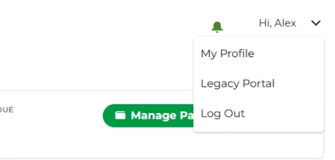
You can switch at any time. Click your name in the top right corner and select Legacy Portal from the dropdown. Switching views does not change your services, invoices, payments or other account information.


How do I view my account details?

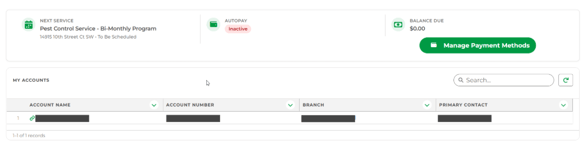
Once logged into the Customer Portal, click “Account” in the main navigation along the top of the page. You’ll find the account name and number, servicing branch, and primary contact.

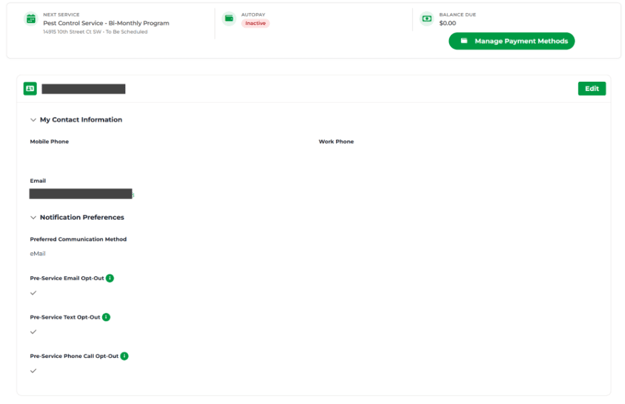
To review your contact information and communication preferences, click “Profile.” Use the Edit option when a field can be updated or contact Customer Support for assistance.

Account View 
 

Contact Information 
 

How can I view upcoming services?

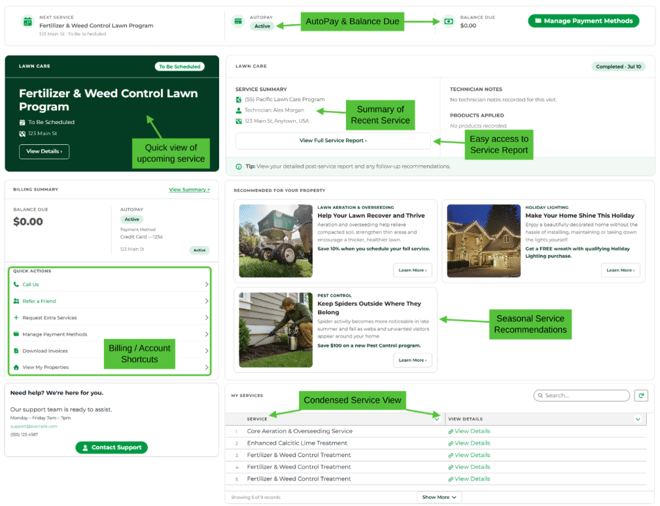
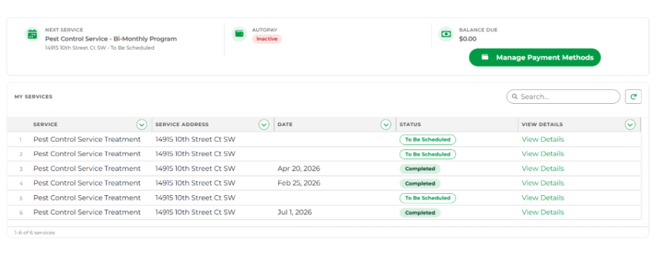
Once logged into the Customer Portal, your Dashboard shows your next service and its scheduling status. To see all current and past services, click “Services.”

Statuses include To Be Scheduled, Scheduled, En Route, In Progress and Completed. A service shows “To Be Scheduled” until the appointment reaches the appropriate scheduling stage. The date will appear once it does. Select “View Details” on a service to see more information, including service reports when available.

Dashboard View
 

Services Page View
  

What is my current billing status?

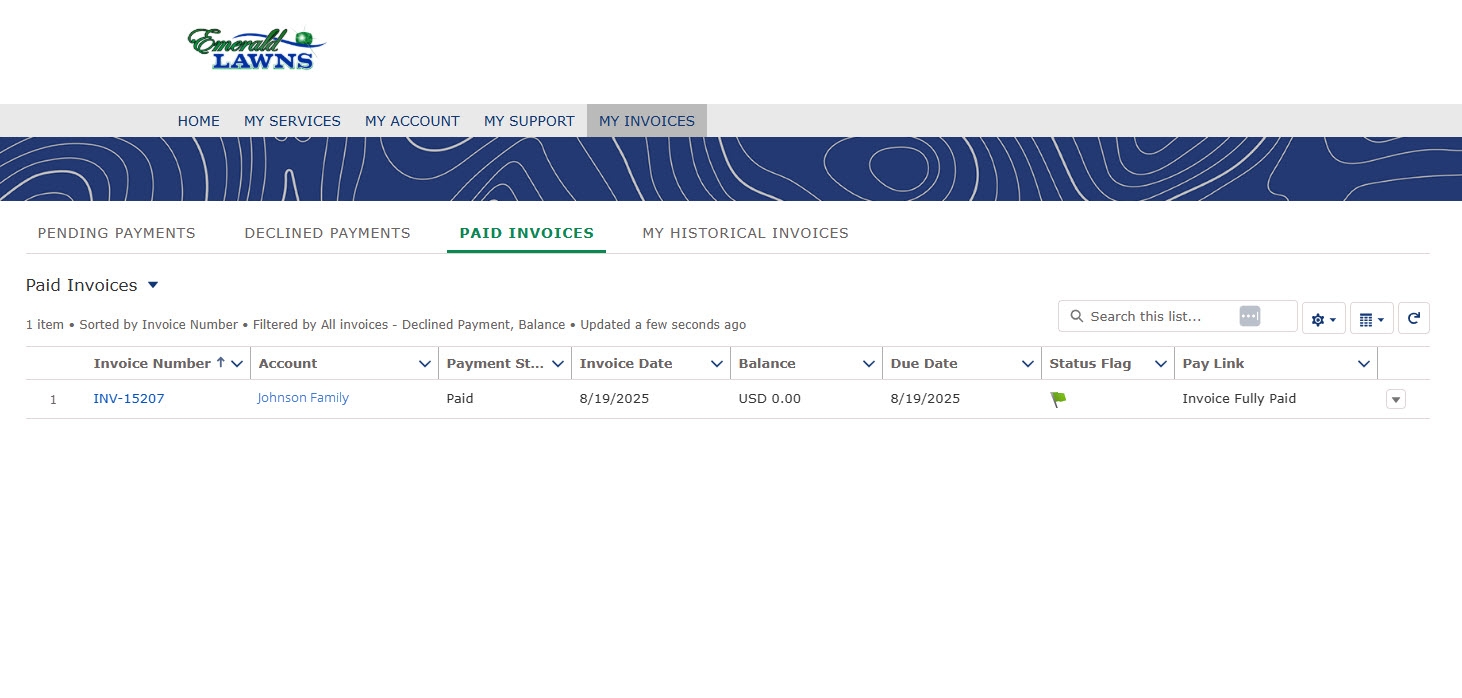
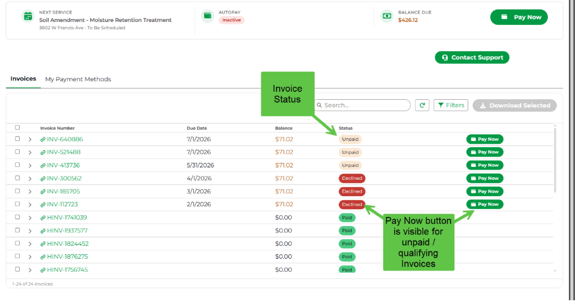
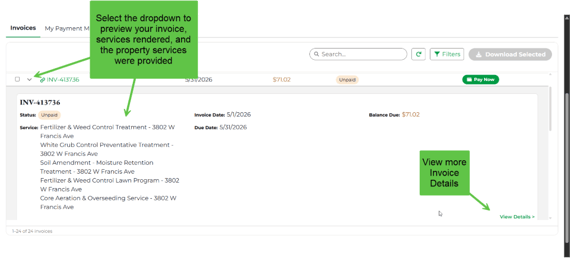
 Your Dashboard shows your current balance and whether AutoPay is active. For more detail, visit “Billing” found in the main navigation along the top of the page to review your invoices and payment status. You can search and filter your invoices. 

Invoices and Payment Status View
  

 Preview Invoice
 

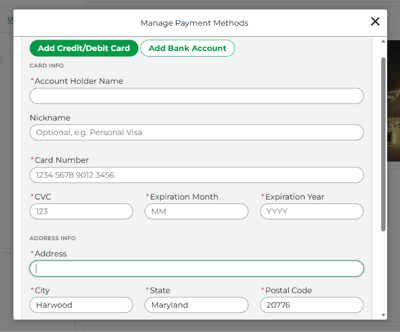
How do I update my payment information?

 Click “Manage Payment Methods” on the Dashboard or Billing page. You can review your saved credit cards or bank accounts, add a new payment method, and see whether a method is active. 
  

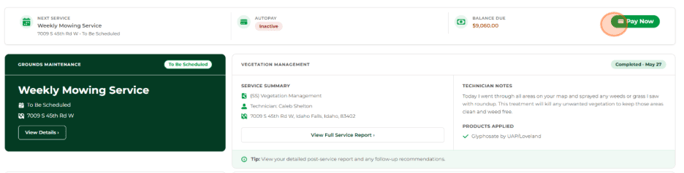
How can I make a payment?

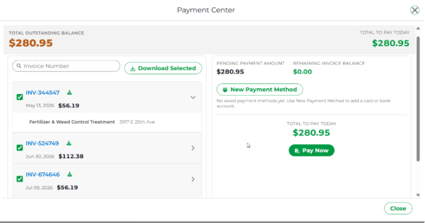
 Click Pay Now on your Dashboard to open the Payment Center. Select all open invoices or choose individual ones, then pay them together in one transaction. You can also add a new payment method while paying and split a payment across payment methods when that option is available.  
  

Payment Center
  

Can I access past invoices?

Yes. After logging into the Customer Portal, visit “Billing” found in the main navigation along the top of the page. Your open and paid invoices, including past invoices, appear there. To download copies, select the invoices you need and click “Download Selected.”

If you have any trouble accessing your invoices, please don’t hesitate to call us at 888-356-7717.

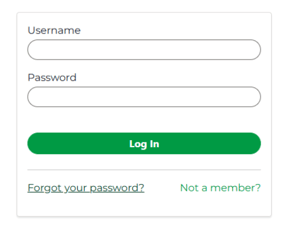
How do I change my password?

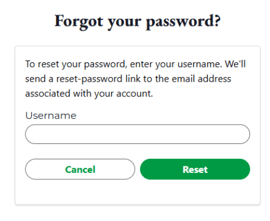
 To reset your password, click “Forgot Password” on the Customer Portal login page. Enter your username and click Reset Password. You will receive a password reset email in your inbox. 

Login Page
Forgot Password Page
  

If I have multiple properties, how can I view them all in one Customer Portal? We’re happy to help! To link multiple properties under your Customer Portal, just email our team at CustomerCare@EmeraldLawns.com. We’ll get everything set up for you.
How is my data secure? We care about you and protecting your data. We keep your credit card information safe by utilizing tokenization. Card information is never stored directly in the system, instead it is replaced with unique tokens that only the payment gateway can decrypt, significantly reducing the risk of data exposure.
How do I contact Customer Support from the portal?  Click the Contact Support button anywhere on the site. The form will use your account information and let you enter the subject and description of your request. To check on a request you’ve already submitted, visit “Support” to see your cases and their status. 
Why might I see a temporary $1 authorization?  When you add a card, the payment-method verification process may place a temporary $1 authorization hold on the card. It is not a charge and should disappear within a few business days. 

Legacy Portal FAQS

How do I login to my Customer Portal?
To access your new Customer Portal, open the email from Emerald Lawns with the subject line: Welcome to Your New Emerald Lawns Customer Portal!
Customer-Portal-Password-Reset-3
 
Within the email, you’ll find a link to the Customer Portal and your new username.
Customer-Portal-Password-Reset-2
 
Click the Customer Portal button in the email or visit https://www.mylawnportal.com/s/login/?expid=EmeraldLawns and enter your new username. Select “Forgot Password”. You will be emailed a link to reset your password.
Custom-Portal-Password-Reset-1


How can I view upcoming services?
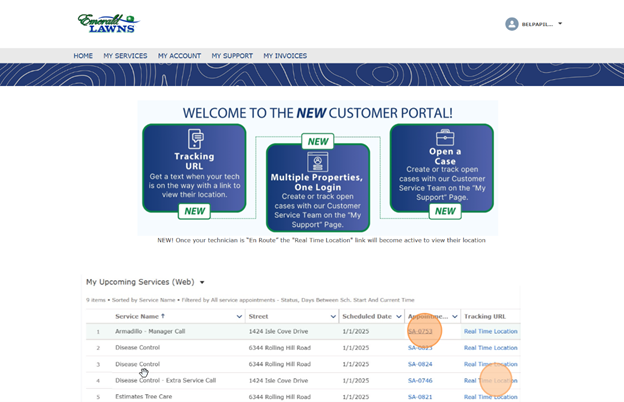
Once logged into the Customer Portal, find Upcoming Services by scrolling below the Welcome message.
 
You may click on the Service Appointment link to view details about it.
 
When a technician has begun traveling to your property, the “Real Time Location” link will become active so you can see their location.
 
Customer-Portal_Home-upcoming-services


How do I view my account details?
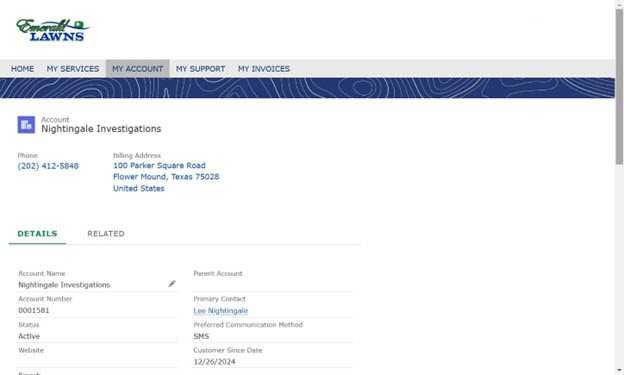
Once logged into the Customer Portal, click “My Account.” You’ll find the account owner, phone number, and billing address along the top.
Customer-Portal_Account-Details-My-account
 
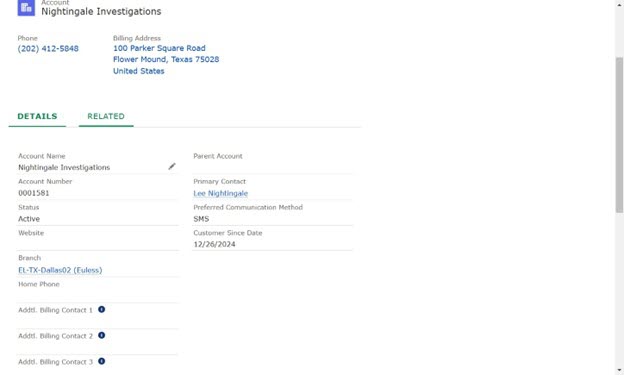
The account number is found under “Details”, as well as the account status, service branch and preferred communication method.
Customer-Portal_Account-Details-2
 
By clicking “Related” you’ll see associated Contacts and Assets (properties). To access more information, click on the individual contact names or property addresses.
What is my current billing status?
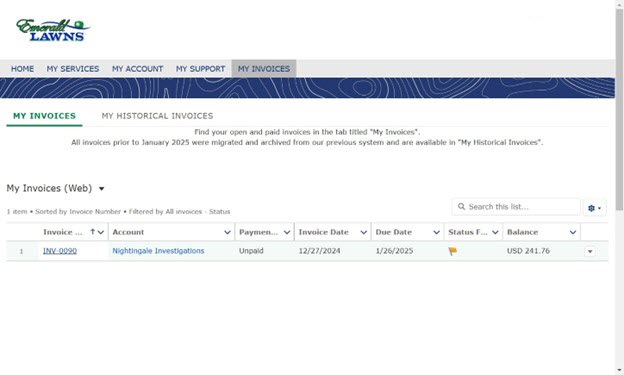
After logging into the Customer Portal, visit “My Invoices”.
 
Find your open and paid invoices in the tab titled “My Invoices”. Click on an invoice number to view status details.
Customer-Portal_My-Invoices_Invoice-Link


How do I update my payment information? To update your payment information, please call the office at 972-460-0080 or visit “My Support” on the Customer Portal and click “Contact Support” to open a new ticket with our Customer Service Team. Our team can supply you with a secure link to update your payment information.
How can I make a payment?
If you need to make a payment, please call the office at 888-356-7717 or visit “My Support” on the Customer Portal and click “Contact Support” to open a new ticket with our Customer Service Team.
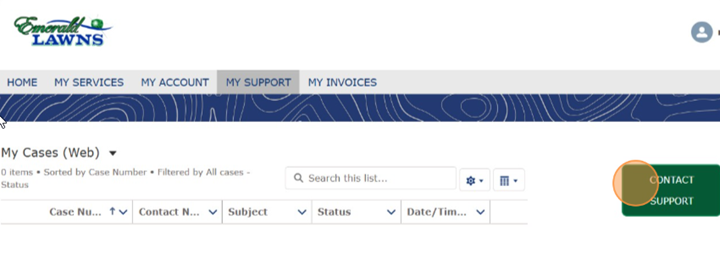
 
Our team can supply you with a secure link to update your payment information.
Can I access past invoices?
After logging into the Customer Portal, visit “My Invoices.”
 
Find your open and paid invoices in the tab titled “My Invoices.” Invoices from the previous Customer Portal are available in “My Historical Invoices.”
 
Click on an invoice number to view status details.
Customer Portal Invoice
 
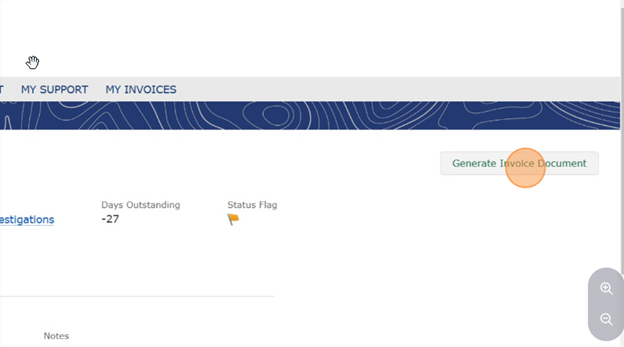
To download a copy of your invoice, click the “Generate Invoice Document” button.
Customer-Portal_My-Invoices_Generate-Invoice B
 
 
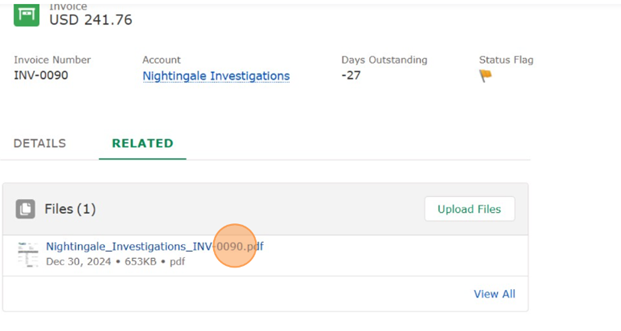
After generating, the PDF can be found in the “Related” section of the page.
 
Customer-Portal_My-Invoices_Download C


If you have any trouble accessing your invoices, please don't hesitate to call us at 888-356-7717.

How do I add or change my services?

The ability to add or make changes to your service is not a current feature available on the Customer Portal. If you need to adjust your service(s), please call the office at 972-460-0080 or visit “My Support” on the Customer Portal and click “Contact Support” to open a new ticket with our Customer Service Team.

Customer-Portal_New-Case-editing


How do I change my password?

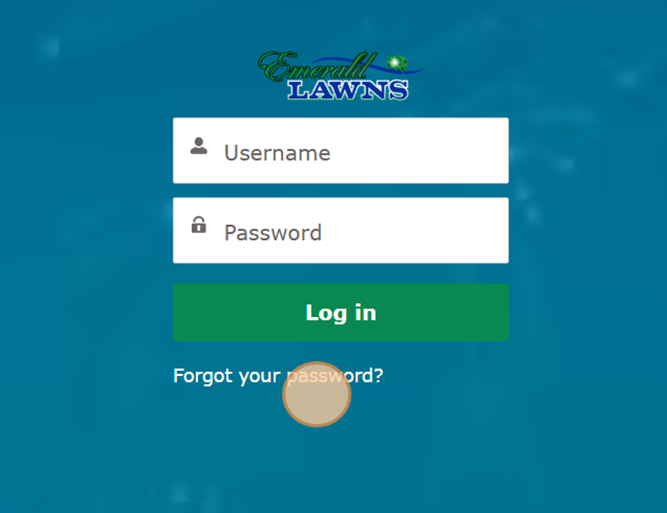
To reset your password, click “Forgot Password” on the Customer Portal login page.

Custom-Portal-Password-Reset-1

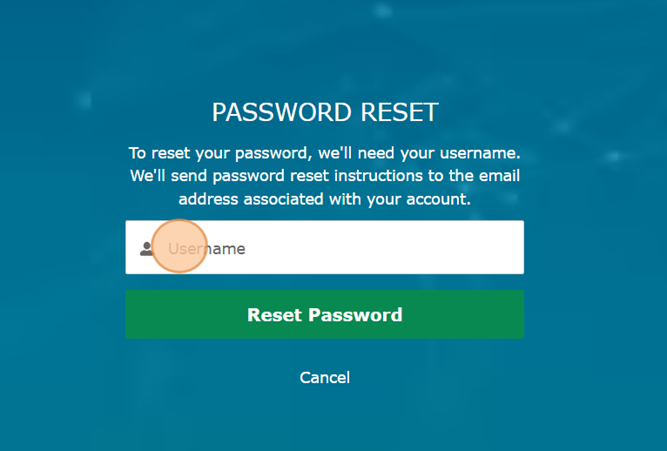
Enter your username and click Reset Password.

Customer-Portal-Password-Reset-2

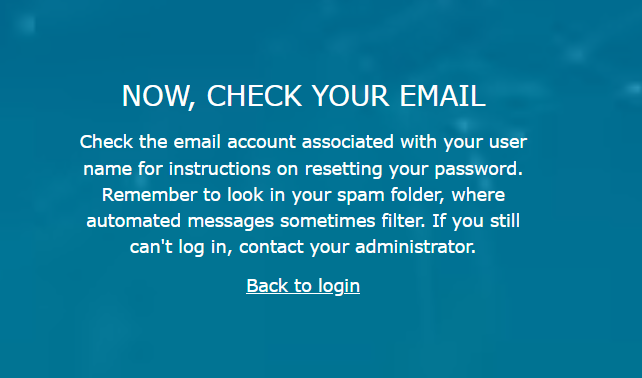
You will receive a password reset email in your inbox.

Customer-Portal-Password-Reset-3


If I have multiple properties, how can I view them all in one Customer Portal? We’re happy to help! To link multiple properties under your Customer Portal, just email our team at CustomerCare@EmeraldLawns.com. We’ll get everything set up for you.
How is my data secure? We care about you and protecting your data. We keep your credit card information safe by utilizing tokenization. Card information is never stored directly in the system, instead it is replaced with unique tokens that only the payment gateway can decrypt, significantly reducing the risk of data exposure.
Steve C.Austin
"Arrived on Schedule"

Jason did a nice job on our Christmas lights. The crew arrived on schedule and accommodated my special requests. They even wired up a few of my yard decorations without my asking them. Thank you for the great service!

Sarah M. Temple/Waco
"Professional and Helpful"

 Immediately after my service was completed, I got a detailed text outlining what he did and next steps for me as far as recommendations for watering and mowing. Very professional and helpful.

Darrell S. San Antonio
"Service is Always Great"

Manny service is always great, it doesn’t matter if I’m physically home watching him in person or watching him from my camera’s miles away without him knowing, the service he provides is unwavering.

Jerry L. Dallas
"Punctual, Thorough"

Shawn and Troy did a phenomenal job top dressing my yard. They were punctual, thorough, and cleaned up after. Will definitely be using their services again.